
iPhone Recording and Meeting Minutes Guide
How to Record a Meeting and Create Minutes on iPhone
To record a meeting and create minutes on iPhone, first confirm any required consent, place your iPhone where it can hear the participants, and start a recording with LogPon! The app transcribes the conversation live. After the meeting, review the transcript, verify names and decisions, and turn the confirmed decisions and action items into minutes. You can organize them yourself or connect your ChatGPT account to draft a summary and ToDo list.
- Record and transcribe a meeting in one workflow
- Create minutes from a reviewed transcript, decisions, and action items
- Keep the original transcript beside any AI-assisted summary
On-device transcription is available on supported OS versions, languages, and recognition paths. For translation, you can choose a local method, such as Apple Translation or an on-device model, or a method that requires a network connection. AI summaries can start with a connected ChatGPT account.
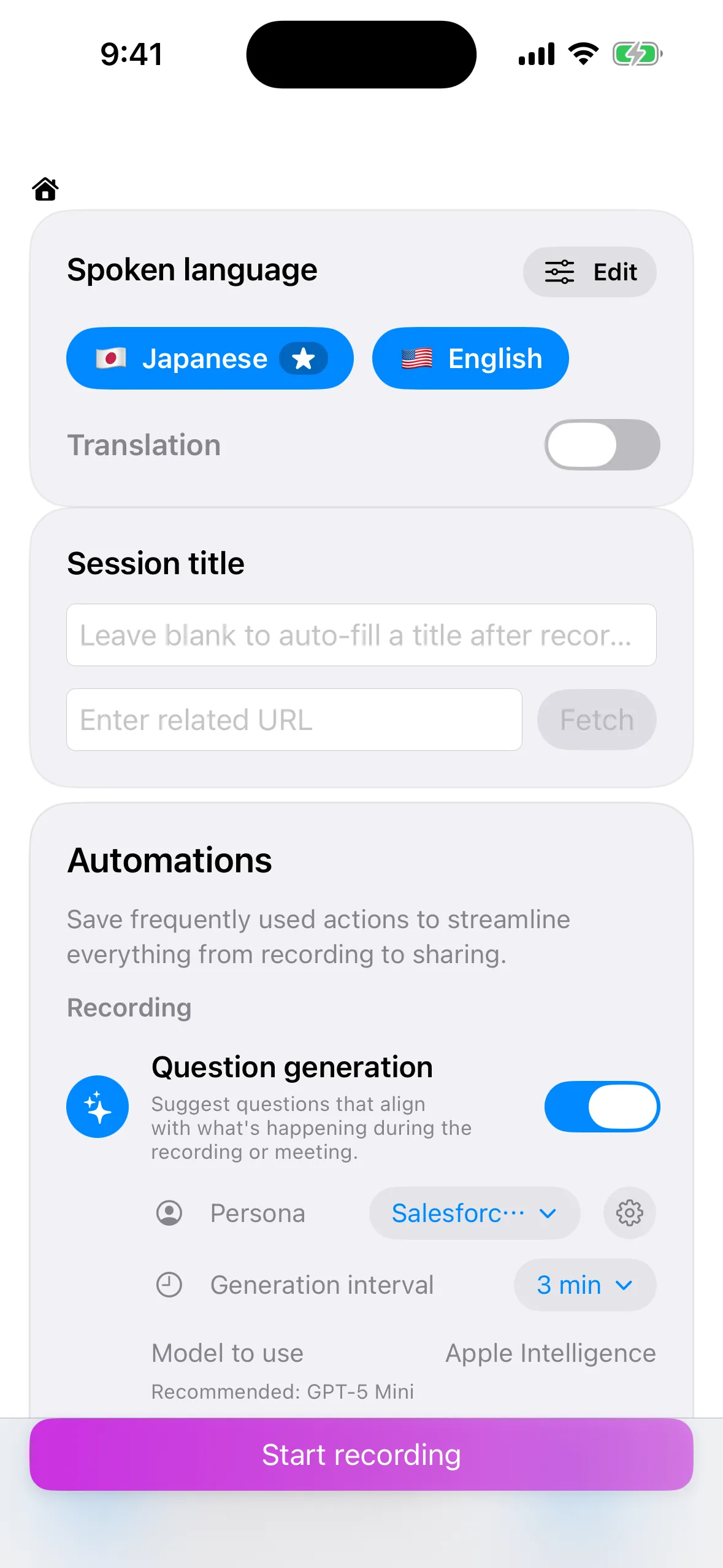
Record, Transcribe, and Create Meeting Minutes in Four Steps
Set the language and session name before the meeting
On the new recording screen, choose the language that will be spoken most often. Give the session a specific name, such as "Weekly Project Meeting," so it remains easy to find as your library grows.
Tell participants, then start recording
Explain the purpose of the recording and how the data will be handled. Confirm any required consent and organizational policies before you begin. Place the iPhone where it can capture speech clearly, and avoid covering the microphone with papers or your hand.
Follow the conversation in the live transcript
Speech appears as text while the meeting continues, so you can revisit a phrase you missed or spot an important term. Check names, numbers, and decisions against the audio and surrounding context instead of treating the transcript as definitive.
Create minutes from verified decisions and action items
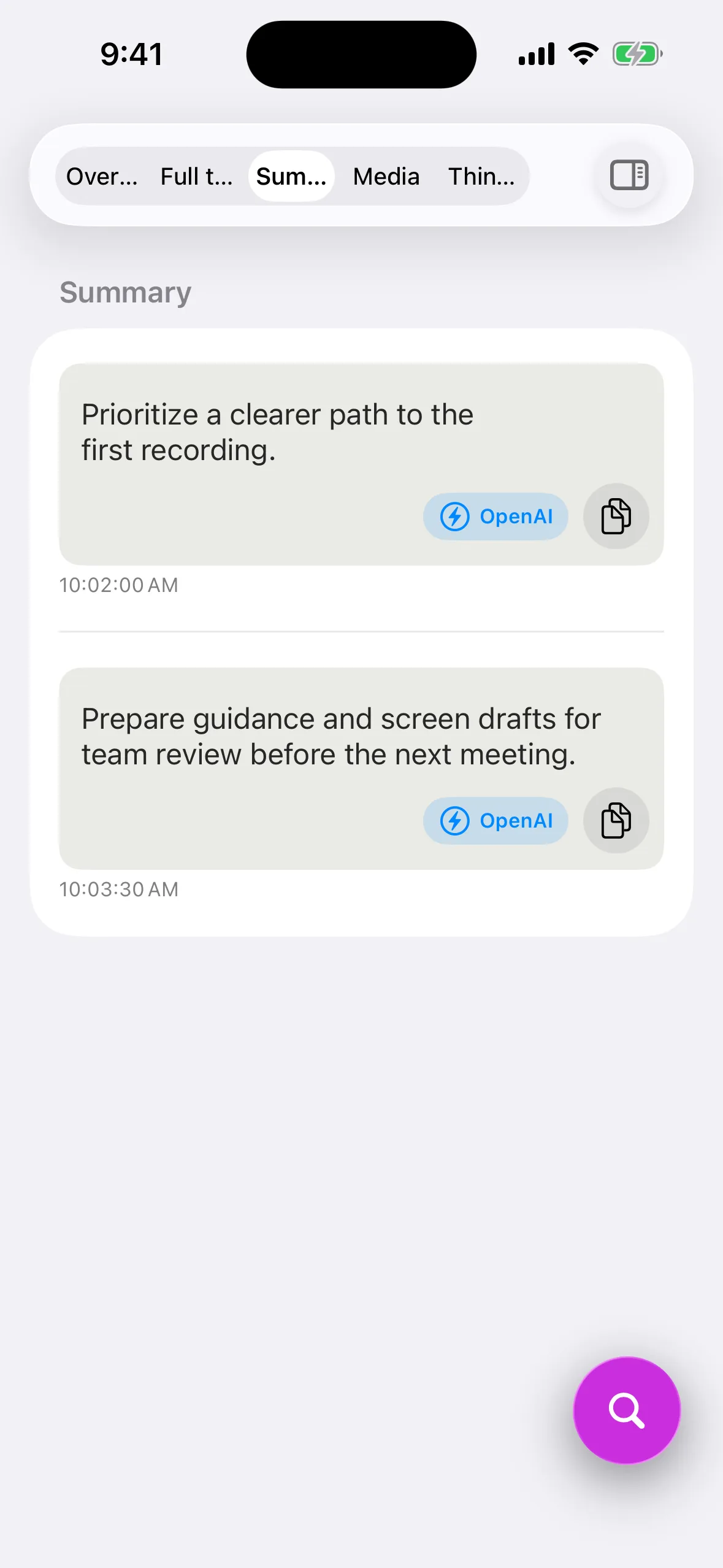
Keep the full transcript while organizing an overview, decisions, owners, and next actions. With a connected ChatGPT account, you can create draft summaries and ToDo lists. Treat AI output as a draft and verify it against the original transcript.
After the Meeting
Keep Decisions, Action Items, and the Full Transcript Together
Useful meeting minutes do more than shorten a conversation. They make it clear what was decided and who needs to follow up. From the LogPon! session overview, you can move between the transcript, summary, and media, then return to the original wording whenever a summary is unclear.
You can also copy the transcript and edit the key points yourself without using an AI summary. Follow your organization's policy when deciding whether confidential information may be sent to an external AI service.
Start with a Short Meeting
Turn Your Next 15-Minute Meeting into a Searchable Record
First, check the input language and microphone position. After the meeting, confirm that the full transcript is clear enough to review.
Frequently Asked Questions About iPhone Meeting Minutes
Can I record a meeting and create minutes on iPhone?
Yes. LogPon! records and transcribes speech in real time on iPhone. After the meeting, review the transcript and organize verified decisions and action items into minutes.
Do I need an OpenAI API key to summarize meeting minutes?
No. Connect your ChatGPT account to start creating summaries, overviews, and ToDo lists within your ChatGPT plan. OpenAI and Claude API keys remain optional alternatives.
Can I transcribe while recording video?
Yes. On iOS, transcription continues while video recording is active, so video and the spoken record can remain in the same session.
What should I check before recording a meeting?
Tell participants why you are recording and transcribing, explain how the data will be handled, and obtain any required consent. Follow your organization's policies, agreements with participants, and local law.
Read the Next Guide


Record Your Next Meeting and Create Minutes on iPhone
Try the workflow from recording through transcript review and verified minutes for free.