
Meeting Translation Guide
How to Translate Meetings in Real Time
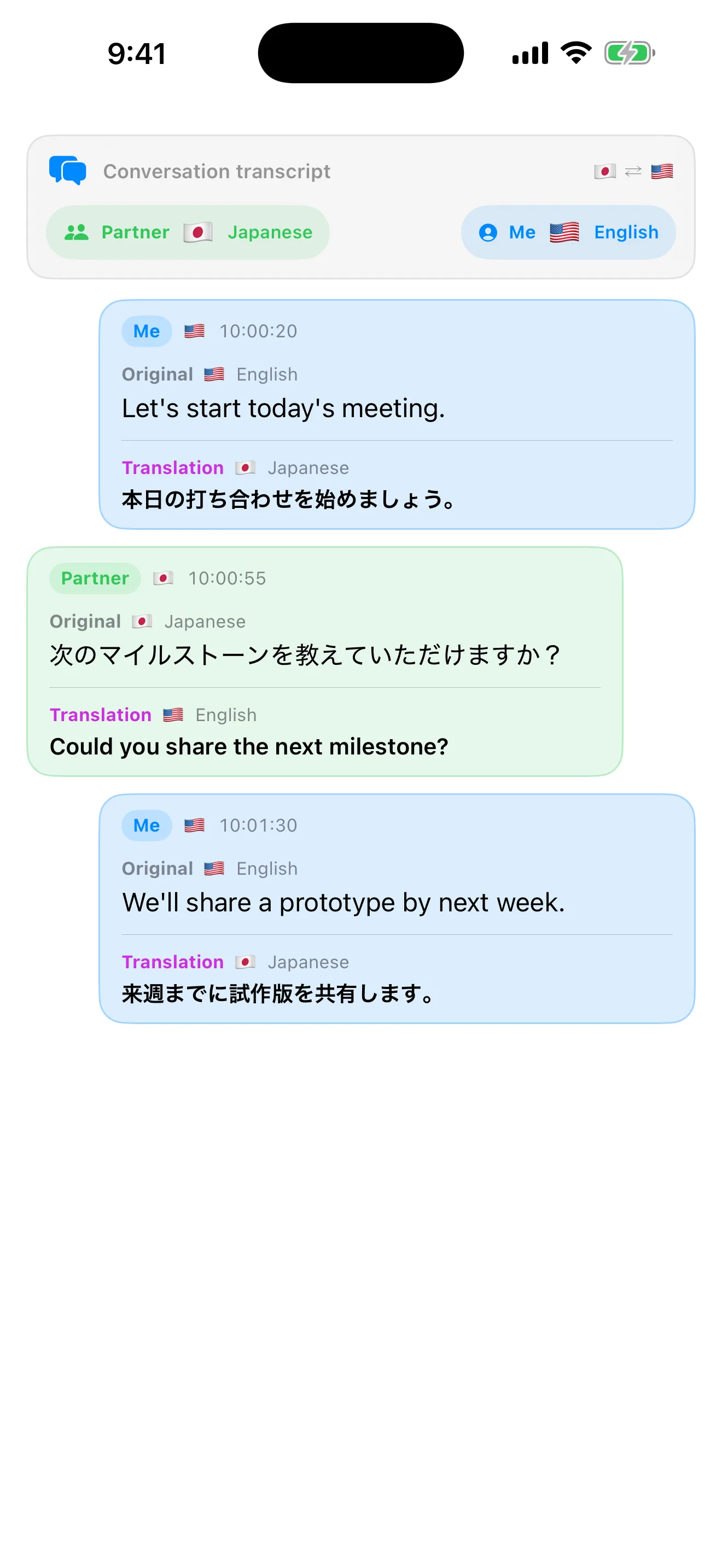
In a meeting where people speak different languages, reading translations alone can make it difficult to tell who said what. LogPon! Conversation Mode places your original words and translation alongside the other person's, separated by speaker, and keeps them together as a meeting record.
- See your statements and the other person's at a glance
- Keep the original words and translation in the same record
- Use on-device processing on supported recognition paths and with Apple Translation or an on-device model
Available on iPhone, iPad, and Mac. Language availability and accuracy depend on the OS, available language data, and device performance.
Translate a Meeting in Real Time in Four Steps
Confirm the Languages Used in the Meeting
Before the meeting, decide which language each person will speak. If you plan to use on-device recognition, confirm that the required speech recognition data is installed. Choose a translation engine as well: check the required data for Apple Translation or an on-device model, or confirm the internet connection and settings required for DeepL or OpenAI.
Set Conversation Mode and the Translation Direction
Select Conversation Mode in LogPon!, then set your language and the other person's language. Before the meeting begins, check the language labels on screen to make sure the translation direction is not reversed.
Take Turns Speaking in Short Sentences
Instead of speaking at length without pausing, stop briefly between sentences or topics. This makes it easier to follow which translation belongs to each original statement. Say names, product names, and numbers slowly, then check the recognition result on screen.
Compare Important Information with the Original Words
Use the translation to follow the conversation, but compare contract terms, amounts, deadlines, and other important details with the original words. Speaker-separated cards remain after the meeting, so you can revisit the translation in context.
Review After the Meeting
Keep a Translation Record You Can Review, Not Just Live Captions
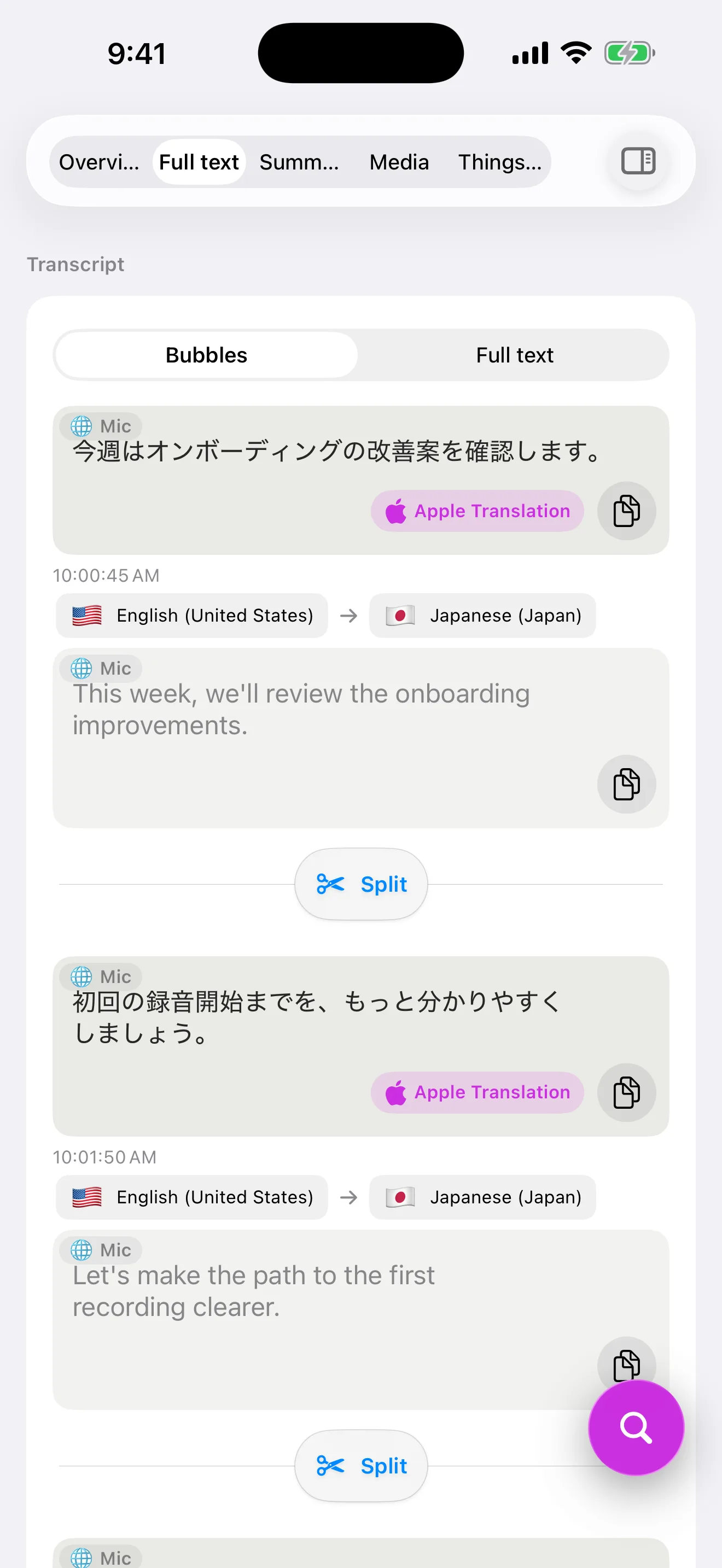
A tool that only displays a translation in the moment can make it difficult to determine which original statement produced it later. LogPon! keeps the original words and translation in each statement block, so you can review possible mistranslations and proper names after the meeting.
Translation is a draft that supports understanding. For important agreements, repeat the terms back to the other person, check the original words, and use a professional interpreter when appropriate.
Available on iPhone and Mac
Try It in Your Next Multilingual Meeting
Before the real meeting, set both languages and test the display with a short conversation that includes important names.
Frequently Asked Questions About Real-Time Meeting Translation
Can I use real-time translation offline?
Under certain conditions. Offline transcription is available when your OS, language, and selected recognition path support on-device recognition and the required speech recognition data has already been downloaded. Offline translation is available when you select Apple Translation or an on-device model, the required language data or model is installed, and no online fallback occurs. DeepL and OpenAI require an internet connection.
Does Conversation Mode keep the original words?
Yes. LogPon! separates your statements from the other person's statements and keeps the original words and translation for each statement on the same card. After the meeting, you can return to the original statement instead of reviewing only the translation.
Can real-time translation replace an interpreter?
Machine translation can contain errors or misinterpret context. Use it to support everyday understanding, and verify important information such as contracts, medical details, safety instructions, and amounts against the original words or with a professional interpreter.
Can I summarize a translated meeting afterward?
Yes. You can use the session record to organize a summary and ToDo list. Connect your ChatGPT account to get started; an OpenAI API key is not required.
Read the Next Guide


Start Translating Meetings in Real Time
Keep the original words and translation in a record you can review later.